

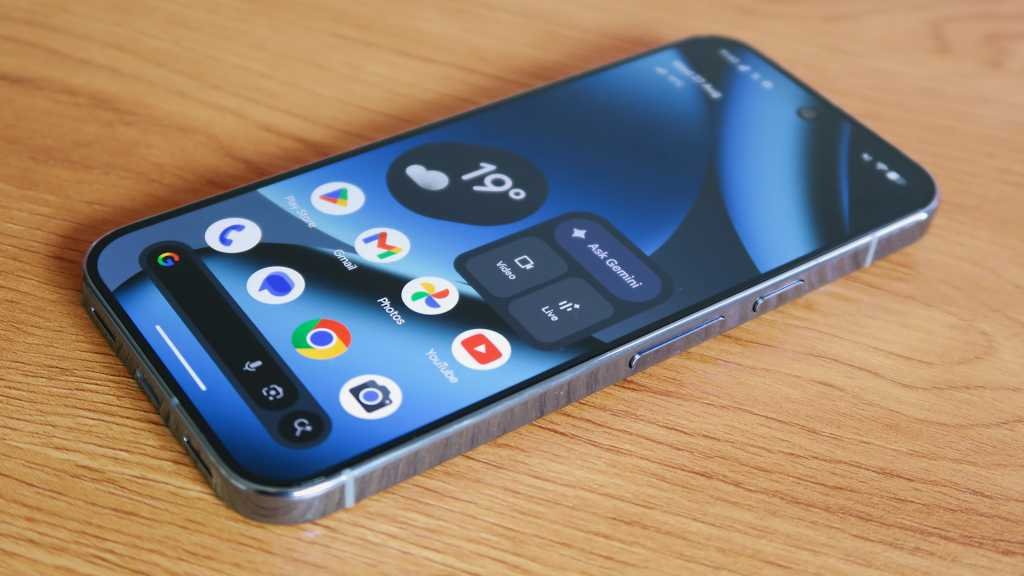
Unlocking the Full Potential of Your Pixel 10 Series Phone
Google has just released its latest line of Pixel phones for 2025, and they are already making waves with their impressive features and specifications. Whether you’re a longtime Pixel user or making the switch for the first time, you’ll want to dive into all the capabilities your new Pixel 10, Pixel 10 Pro, Pixel 10 Pro XL, or Pixel 10 Pro Fold has to offer. Below is a collection of handy tips and tricks to help you maximize your Android 16 experience!
Turn Pro Res Zoom On or Off
If you’ve picked up the Pixel 10 Pro or 10 Pro XL, you’re in for a treat with Pro Res Zoom. This feature enhances the maximum telephoto capture magnification from an already impressive 30x to a staggering 100x.
However, it might not be enabled by default. Here’s how to toggle Pro Res Zoom on or off:
- Open the Camera App: Tap the camera icon on your home screen.
- Access Settings: Click on the settings icon (a cog) at the bottom-left corner of the viewfinder.
- Download Model: Tap the three dots in the top-right corner and select Model download. If Pro Res Zoom isn’t installed, you’ll see an option to download it. Simply tap the downward arrow next to it.
- Uninstall If Needed: If you wish to disable Pro Res Zoom later, go back to Model download and hit the trash can icon to uninstall it.
You may have to restart the Camera app to see the new zoom options.
Create a Calling Card
With the arrival of Material 3 Expressive in Android 16, Google has introduced Calling Cards, which let you create personalized full-screen posters for key contacts, similar to iOS’ Contact Posters.
To create a Calling Card:
- Open the Contacts App: Find the contact you wish to customize.
- Select Contact: Tap on the chosen contact, and you’ll see a prompt stating, ‘Try adding a calling card.’
- Choose an Image: Use the Camera, Gallery, or Google Photos to pick a photo.
- Customize: Adjust the image and select different font styles and colors for the name.
- Save: Don’t forget to hit Done and then Save.
If the option doesn’t show up, you might need to update your Contacts app.
Check for AI-Altered Images with Content Credentials
With the rise of generative AI tools, Google aims to ensure the authenticity of images. Pixel 10 users can check the provenance of images directly within Google Photos.
To see an image’s content credentials:
- Open Google Photos: Tap on any photo you want to investigate.
- Swipe Up: This reveals the details of the image.
- Review Credentials: Under How this was made, you’ll find key information, including notes if it was edited or enhanced through AI tools.
Add Music to Your Recordings with AI
The native Recorder app now offers a fantastic new feature—you can add AI-generated music to your recordings! This is perfect for infusing a little creativity into your voice notes or musical ideas.
Here’s how to get started:
- Launch the Recorder App: Open the app and select a recording (must be 3 minutes or less).
- Access Music Options: Tap the three dots in the top-right corner, then select Create music.
- Choose Your Vibe: Pick a style from Featured vibes or create your own under Your vibes.
- Save Your Creation: After processing, save the newly soundtracked recording.
The app automatically balances the music volume with speech, ensuring clarity.
Listen to This Page
Navigating content while on the move can be challenging, but with the Listen to this page feature, you can have web pages read aloud.
To use this feature:
- Open Chrome: Navigate to the desired web page.
- Access Settings: Tap the three dots in the top-right corner.
- Select Listen to This Page: Click on the option, and the page will be read to you.
Enjoy the convenience of media controls to pause or skip through sections while you multitask.
Enhanced Now Playing
Now Playing has always been a standout Pixel feature, but the new Enhanced Now Playing enriches your listening experience by sourcing relevant album art for recognized tracks.
Here’s how to enable it:
- Open Settings: Go to the Settings app on your Pixel.
- Navigate to Sound Settings: Tap on Sound and vibration, then locate Now Playing.
- Enable Enhanced Now Playing: Toggle the option to activate this feature, and enjoy seeing album art alongside your identified tracks.
Enable Advanced Protection
Shouldn’t your phone be as secure as possible? The Pixel’s Advanced Protection suite can offer additional safety features, including theft detection lock and Android Safe Browsing.
Follow these steps to enable it:
- Open Settings: Go to the Settings app.
- Access Security Settings: Tap on Security and privacy.
- Enable Advanced Protection: Toggle the switch next to the Device protection option.
Empower the Power Button
The power button on your Pixel is multifunctional and can summon Google Gemini with a long press by default. If you’d prefer to change this back to the traditional power menu:
- Open Settings App: Tap on System.
- Select Gestures: Scroll down and pick Press and hold power button.
- Choose Power Menu: Tap on the option so that a long press brings up the classic power menu instead of Google Gemini.
Boost Display Resolution & Refresh Rate
The fabulous Actua and Super Actua displays on the Pixel 10 series offer stunning visuals. However, default settings might not utilize their full potential.
- Open Settings: Navigate to the Display and touch section.
- Change Screen Resolution: Adjust from High resolution to Full resolution for sharper visuals.
- Modify Refresh Rate: Find the Smooth display option at the bottom of the list and toggle it according to your preference.
With these tips, your Pixel 10 device will truly shine, offering you a tailored experience filled with impressive features and enhancements designed to improve your everyday interactions!