
Our digital lives are more connected than ever.
We use smartphones, computers, cloud services, social media platforms, online banking, shopping websites, messaging applications, and countless other digital services every day. While technology makes life easier, it also creates new opportunities for cybercriminals, scammers, advertisers, and other unwanted actors to access information.
Personal information such as passwords, financial details, private conversations, photographs, documents, location data, and account credentials can become valuable targets.
The good news is that protecting your digital security and privacy does not have to be complicated.
A few practical habits—such as using strong passwords, enabling multi-factor authentication, keeping software updated, securing Wi-Fi networks, controlling app permissions, and recognizing phishing attempts—can significantly improve your overall protection.
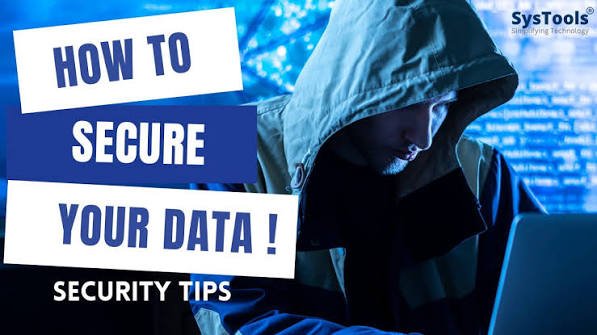
This Security & Privacy How-Tos guide explains practical steps you can take to secure your accounts, devices, personal information, online activity, and digital identity.
What Are Digital Security and Privacy?
Although security and privacy are closely related, they are not exactly the same.
Digital Security
Digital security focuses on protecting systems, accounts, devices, and information from unauthorized access, attacks, theft, and damage.
Examples include:
- Strong passwords
- Multi-factor authentication
- Antivirus protection
- Software updates
- Encryption
- Secure backups
- Firewall protection
Digital Privacy
Digital privacy focuses on how personal information is collected, used, stored, shared, and exposed.
Examples include:
- Managing app permissions
- Limiting data collection
- Reviewing privacy settings
- Using privacy-conscious services
- Controlling location sharing
- Reducing unnecessary personal information online
You need both.
A secure account can still expose too much personal information, while a privacy-focused device can still be vulnerable if its security controls are weak.
Why Security and Privacy Matter
Your digital information can reveal a great deal about you.
This may include:
- Your identity
- Location
- Contacts
- Financial activity
- Purchases
- Personal interests
- Work information
- Private conversations
- Photographs
- Browsing activity
A compromised account can also become a gateway to other accounts.
For example, if an attacker gains access to your email account, they may be able to reset passwords for other services connected to that email address.
That makes your most important accounts especially valuable.
How to Create Strong Passwords
One of the easiest ways to improve account security is to stop using weak or reused passwords.
A strong password should be:
- Long
- Unique
- Difficult to guess
- Different from passwords used elsewhere
Avoid using information such as:
- Your name
- Birthday
- Address
- Pet’s name
- Company name
- Favorite sports team
- Simple number combinations
Instead, use a long passphrase or a randomly generated password.
How to Use a Password Manager
A password manager can securely store your passwords and help generate unique credentials.
Step 1: Choose a Reputable Password Manager
Research the provider’s security model, encryption approach, recovery options, and reputation.
Step 2: Create a Strong Master Password
Your master password protects access to the password manager, so it should be especially strong and unique.
Step 3: Generate Unique Passwords
Use the password manager to create different passwords for different websites.
Step 4: Replace Reused Passwords
Start with your most important accounts and gradually replace reused credentials.
Step 5: Enable MFA
Where supported, protect the password manager itself with multi-factor authentication.
How to Enable Multi-Factor Authentication
Multi-factor authentication, commonly called MFA, provides an additional layer of protection beyond your password.
Step 1: Open Account Security Settings
Look for options such as:
Security → Login & Security → Two-Factor Authentication
The exact location depends on the service.
Step 2: Choose an Authentication Method
Possible methods include:
- Authentication apps
- Passkeys
- Hardware security keys
- SMS codes
Where available, stronger phishing-resistant methods such as passkeys or security keys can provide important protection.
Step 3: Complete Setup
Follow the provider’s instructions to register your authentication method.
Step 4: Save Recovery Options
Store backup codes somewhere secure in case you lose access to your primary authentication method.
Step 5: Repeat for Important Accounts
Prioritize:
- Banking
- Cloud storage
- Social media
- Work accounts
- Password managers
- Business administration accounts
How to Secure Your Email Account
Your email account deserves special attention because it is often connected to password resets and important services.
To secure your email:
- Use a unique password.
- Enable MFA.
- Review recent login activity.
- Remove unfamiliar devices.
- Check account recovery information.
- Review connected applications.
- Be cautious with suspicious attachments and links.
If your email account is compromised, change the password and review account activity immediately.
How to Recognize a Phishing Email
Phishing attacks attempt to trick you into revealing information or performing an action.
Look for warning signs such as:
- Unexpected urgency
- Suspicious links
- Unusual sender addresses
- Requests for passwords
- Unexpected payment requests
- Strange attachments
- Threatening language
- Offers that seem too good to be true
Before clicking a link, consider whether you expected the message.
When in doubt, visit the company’s official website directly instead of using the link in the message.
How to Check a Link Before Clicking
You can reduce phishing risks by checking links carefully.
On a Computer
Move your mouse over the link without clicking it.
The destination URL may appear in the browser interface.
Look for:
- Misspelled domains
- Unexpected domain names
- Suspicious subdomains
- Unusual characters
- Unencrypted or unexpected destinations
Be especially cautious when a message claims to be from a company but directs you to an unrelated domain.
How to Secure Your Smartphone
Smartphones contain enormous amounts of personal information.
To protect your phone:
- Use a strong screen lock.
- Enable automatic updates.
- Install apps from trusted sources.
- Review app permissions.
- Enable device encryption where available.
- Turn on device-finding features.
- Avoid unknown Wi-Fi networks for sensitive activities.
- Remove apps you no longer use.
Your phone should be treated as a valuable digital identity device rather than simply a communication tool.
How to Review App Permissions
Apps may request access to:
- Camera
- Microphone
- Contacts
- Location
- Photos
- Files
- Notifications
- Bluetooth
Not every app needs every permission.
Step 1: Open Privacy Settings
Go to your device’s privacy or permissions settings.
Step 2: Review Sensitive Permissions
Pay particular attention to location, microphone, camera, contacts, and files.
Step 3: Remove Unnecessary Access
If an application does not need a permission to function, consider disabling it.
Step 4: Review Periodically
Permissions should be reviewed after installing new applications and periodically afterward.
How to Protect Your Computer
Your computer may contain sensitive documents, saved passwords, work information, and personal files.
Basic protection should include:
- Automatic operating system updates
- Updated browsers
- Security software
- Strong account passwords
- Screen locking
- Disk encryption where appropriate
- Regular backups
- Secure software installation
Avoid installing applications from unknown sources.
How to Enable Automatic Software Updates
Software updates often include important security fixes.
Step 1
Open your operating system’s update settings.
Step 2
Enable automatic updates where practical.
Step 3
Allow applications to update automatically when the option is available.
Step 4
Restart devices when required to complete important security updates.
Keeping software current reduces exposure to vulnerabilities that have already been fixed by vendors.
How to Secure Your Home Wi-Fi
Your home network connects many devices to the internet.
These may include:
- Computers
- Smartphones
- Smart TVs
- Security cameras
- Gaming consoles
- Smart speakers
- IoT devices
To secure your Wi-Fi:
- Change default router credentials.
- Use a strong Wi-Fi password.
- Use modern wireless security settings.
- Update router firmware.
- Disable unnecessary remote administration.
- Review connected devices.
- Create a separate guest network when appropriate.
How to Check Which Devices Are Connected to Your Wi-Fi
Most modern routers provide a connected-device list.
Step 1
Log in to your router’s administration interface.
Step 2
Find the section labeled something like:
Connected Devices, Clients, or Device List.
Step 3
Review the devices.
Look for unfamiliar:
- Phones
- Computers
- Smart devices
- Network equipment
Step 4
Investigate Unknown Devices
If you cannot identify a connected device, change the Wi-Fi password and investigate further.
How to Use a VPN Safely
A Virtual Private Network, or VPN, can encrypt network traffic between your device and the VPN service.
VPNs can be useful in certain situations, particularly when connecting through untrusted networks.
However, a VPN does not make you completely anonymous or protect you from every online threat.
When choosing a VPN, consider:
- Provider reputation
- Privacy policy
- Security practices
- Supported protocols
- Independent audits
- Device support
- Performance
- Data retention practices
Avoid assuming that a VPN automatically makes all online activity private.
How to Protect Yourself on Public Wi-Fi
Public Wi-Fi networks can create additional security concerns.
When using public Wi-Fi:
- Verify the network name.
- Avoid entering sensitive information if you are unsure about the connection.
- Use HTTPS websites.
- Keep device security enabled.
- Avoid automatically connecting to unknown networks.
- Consider using a trusted VPN when appropriate.
- Disconnect when you no longer need the network.
How to Secure Your Social Media Accounts
Social media accounts can contain valuable personal information and can also be used for identity impersonation.
Protect them by:
- Using unique passwords
- Enabling MFA
- Reviewing active sessions
- Removing old connected applications
- Limiting public personal information
- Reviewing privacy settings
- Being cautious with direct messages
- Avoiding suspicious links
How to Improve Social Media Privacy
Review what information is publicly visible.
Consider limiting access to:
- Phone number
- Email address
- Home location
- Date of birth
- Personal photographs
- Contact lists
- Workplace information
Avoid sharing information that could help attackers answer security questions or construct convincing social-engineering attacks.
How to Protect Your Online Banking
Financial accounts require strong security controls.
Use:
- A unique password
- MFA where available
- Device security
- Account alerts
- Secure connections
Enable transaction notifications when offered.
If you notice an unfamiliar transaction or login, contact your financial institution using an official communication channel.
Never provide banking credentials in response to unexpected messages.
How to Secure Cloud Storage
Cloud storage can contain some of your most important information.
To secure cloud accounts:
- Enable MFA.
- Use a unique password.
- Review connected devices.
- Review shared files.
- Remove unnecessary users.
- Check third-party applications.
- Review recovery options.
Be especially careful with public sharing links.
How to Back Up Your Important Data
Backups protect against:
- Hardware failure
- Accidental deletion
- Ransomware
- Lost devices
- Software problems
- Theft
Important files may include:
- Photos
- Videos
- Documents
- Financial records
- Work files
- Creative projects
A useful backup strategy should include multiple copies and should not rely exclusively on a single device.
How to Test a Backup
Having a backup is not enough.
You should verify that the data can actually be restored.
Step 1
Select several important files.
Step 2
Restore them to a separate location.
Step 3
Confirm that they open correctly.
Step 4
Periodically test larger recovery scenarios.
Testing helps identify corrupted, incomplete, or outdated backups before you actually need them.
How to Encrypt Sensitive Data
Encryption converts information into a protected form that cannot easily be understood without the appropriate key or credentials.
Encryption can protect:
- Files
- Devices
- Communications
- Cloud data
- Network traffic
Use built-in encryption features provided by reputable operating systems and services where appropriate.
How to Protect Your Browser Privacy
Web browsers can store information such as:
- Cookies
- Browsing history
- Saved passwords
- Website permissions
- Tracking identifiers
You can improve browser privacy by:
- Keeping the browser updated
- Reviewing site permissions
- Removing unnecessary extensions
- Clearing unnecessary stored data
- Using privacy-conscious settings
- Avoiding suspicious extensions
Browser extensions should be treated as software that receives potentially significant access to your browsing environment.
How to Secure Browser Extensions
Before installing an extension:
- Check the developer.
- Review requested permissions.
- Check whether the extension is actively maintained.
- Review reputable user feedback.
- Avoid unnecessary extensions.
Remove extensions you no longer need.
How to Protect Against Identity Theft
Identity theft occurs when someone uses your personal information without authorization.
Reduce your risk by:
- Protecting important accounts
- Limiting public personal information
- Monitoring financial accounts
- Using MFA
- Being cautious with unexpected requests
- Securely disposing of sensitive documents
- Reviewing account activity
If your personal information is exposed, act quickly to secure affected accounts and follow relevant reporting and recovery procedures.
How to Secure Your Digital Identity
Your digital identity includes the accounts and information associated with you online.
Important elements include:
- Email accounts
- Social profiles
- Financial accounts
- Cloud services
- Work accounts
- Government services
- Shopping accounts
Create a hierarchy of protection.
Your primary email and financial accounts should generally receive stronger security controls than low-value accounts.
How to Remove Old Online Accounts
Old accounts can become security risks if you no longer monitor them.
Step 1
Identify accounts you no longer use.
Step 2
Log in and download anything you need.
Step 3
Delete personal information where possible.
Step 4
Close the account according to the provider’s procedure.
Step 5
Remove connected applications.
Reducing your online account footprint can reduce the number of accounts that need to be secured.
How to Protect Yourself From Social Engineering
Social engineering attacks manipulate people rather than directly attacking technology.
Attackers may pretend to be:
- Bank employees
- IT support
- Managers
- Delivery companies
- Government representatives
- Friends
- Family members
They may create a sense of urgency to prevent you from thinking carefully.
Before sharing sensitive information or approving a transaction, verify the request through an independent, trusted channel.
How to Secure Smart Home Devices
Internet-connected devices can introduce additional security risks.
Examples include:
- Cameras
- Smart speakers
- Doorbells
- Smart locks
- Thermostats
- Televisions
- Appliances
Best practices include:
- Change default passwords.
- Update firmware.
- Disable unnecessary services.
- Use strong Wi-Fi security.
- Review privacy settings.
- Replace devices that no longer receive security updates.
How to Protect Children Online
Children may encounter:
- Scams
- Cyberbullying
- Inappropriate content
- Privacy risks
- Malicious downloads
- Online predators
- Account theft
Parents and guardians can encourage:
- Strong passwords
- MFA where appropriate
- Private account settings
- Careful sharing of personal information
- Safe browsing habits
- Open conversations about online risks
Security education should focus on helping children understand why these practices matter.
How to Create a Personal Security Routine
Cybersecurity becomes easier when it becomes a habit.
Daily
- Be cautious with unexpected messages.
- Avoid suspicious links.
- Lock your devices.
Weekly
- Review important account alerts.
- Check financial activity.
- Install pending updates.
Monthly
- Review account sessions.
- Check app permissions.
- Remove unused applications.
- Review important privacy settings.
Periodically
- Test backups.
- Replace compromised or reused passwords.
- Review recovery methods.
- Audit connected applications.
- Review your overall digital footprint.
A Simple Digital Security Checklist
Use this checklist to evaluate your current security:
- Strong passwords are used
- Passwords are not reused
- A password manager is used where appropriate
- MFA is enabled on important accounts
- Email is strongly protected
- Operating systems are updated
- Apps and browsers are updated
- Devices use screen locks
- Important devices use encryption where appropriate
- Important data is backed up
- Backups have been tested
- Wi-Fi uses strong security
- Router credentials have been changed
- App permissions are reviewed
- Social media privacy settings are reviewed
- Cloud-sharing permissions are reviewed
- Unused accounts are removed
- Suspicious messages are reported
- Recovery codes are stored securely
Common Security and Privacy Mistakes
Using the Same Password Everywhere
One compromised account can put multiple accounts at risk.
Ignoring Software Updates
Unpatched vulnerabilities can provide attackers with opportunities to compromise devices.
Clicking Links Without Checking Them
Phishing attacks often rely on users acting quickly.
Giving Apps Too Many Permissions
Apps should receive only the access they actually need.
Keeping Old Accounts
Unused accounts may remain vulnerable even if you no longer use them.
Assuming a VPN Makes You Anonymous
A VPN provides specific privacy and security benefits but does not make you invisible online.
Relying Only on Antivirus
Security requires multiple layers of protection.
Never Testing Backups
A backup that cannot be restored is not a dependable recovery solution.
What to Do If You Think You’ve Been Hacked
If you suspect an account or device has been compromised, do not panic.
Take practical steps.
1. Secure the Account
Change the password from a trusted device if possible.
2. Enable MFA
If MFA was not already enabled, activate it.
3. Review Active Sessions
Sign out unfamiliar devices and sessions.
4. Check Recovery Information
Make sure attackers have not changed recovery email addresses or phone numbers.
5. Review Account Activity
Look for suspicious messages, transactions, or changes.
6. Check Other Accounts
If you reused the same password elsewhere, change those passwords immediately.
7. Scan the Device
Use reputable security software when malware is suspected.
8. Contact the Relevant Provider
For banking, financial, workplace, or other sensitive accounts, use the organization’s official support or security channels.
Building a Privacy-First Digital Lifestyle
Privacy is not something you achieve with one setting.
It is a continuous process of reducing unnecessary exposure.
A privacy-conscious approach includes:
- Sharing less personal information
- Reviewing privacy settings
- Choosing services carefully
- Limiting app permissions
- Securing accounts
- Using encryption where appropriate
- Removing unused accounts
- Understanding how data is collected
The goal is not necessarily to eliminate every form of data collection. Instead, it is to make informed decisions about what information you share and with whom.
The Future of Digital Security and Privacy
Technology continues to evolve, and cybersecurity threats evolve alongside it.
Artificial intelligence is increasingly being used for both defensive security and malicious activities.
AI can help security teams:
- Detect unusual behavior
- Analyze large datasets
- Identify threats
- Automate security responses
- Prioritize vulnerabilities
Attackers can also use AI to create more convincing phishing messages, automate scams, and improve social engineering.
Other emerging areas include:
- Passkeys
- Zero-trust security
- Privacy-enhancing technologies
- Device-based authentication
- Security automation
- Cloud security
- Identity protection
- AI security
As technology changes, security and privacy habits will need to evolve as well.
Final Thoughts
Digital security and privacy are no longer optional skills.
Whether you are browsing the internet, managing a business, working remotely, shopping online, using social media, or storing personal files in the cloud, your digital information deserves protection.
The strongest security strategy does not depend on a single application.
It combines:
Strong Authentication + Secure Devices + Privacy Controls + Safe Online Habits + Reliable Backups
Start with the basics.
Secure your most important accounts, enable MFA, use unique passwords, update your devices, review permissions, protect your Wi-Fi, back up important information, and learn how to recognize scams.
Small improvements can make a significant difference.
Frequently Asked Questions About Security & Privacy
What is the difference between cybersecurity and privacy?
Cybersecurity focuses primarily on protecting systems, accounts, devices, and information from unauthorized access and attacks. Privacy focuses on how personal information is collected, used, stored, and shared.
What is the most important security step I can take?
There is no single solution for every situation, but securing important accounts with strong unique passwords and multi-factor authentication is an excellent starting point.
Is a password manager safe?
A reputable password manager can provide strong protection and make it easier to use unique passwords. However, users should research the provider’s security model and protect the password-manager account itself.
Should I use a VPN?
A VPN can provide useful protection in certain networking situations, but it does not make you completely anonymous or protect you from every type of online attack.
How often should I change my passwords?
You generally do not need to change a strong, unique password simply because a certain amount of time has passed. Change passwords immediately when they are compromised, exposed, reused, or when there is another reason to believe they are unsafe.
How can I tell if an email is a scam?
Look for unexpected requests, suspicious links, unusual sender addresses, urgent language, unexpected attachments, and requests for sensitive information or payments.
Are smartphones secure?
Modern smartphones include many strong security features, but users still need to use screen locks, updates, reputable applications, secure authentication, and appropriate privacy settings.
How often should I back up my files?
The appropriate frequency depends on how important the files are and how frequently they change. Critical files should be backed up frequently enough that losing the most recent version would be acceptable.
Does private browsing make me anonymous?
No. Private or incognito browsing primarily limits certain information stored locally by the browser. It does not make you completely anonymous to websites, internet providers, employers, or other network operators.
What should I do if my password has been stolen?
Change the compromised password immediately, enable MFA, review active sessions, check for unauthorized account changes, and change any other account where the same password was used.