

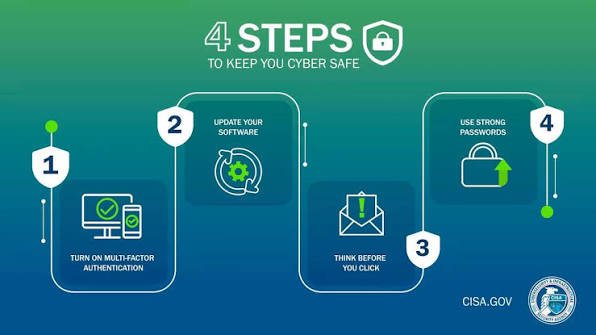
As our personal and professional lives become increasingly digital, protecting our online security and privacy has never been more important. Every day, people use smartphones, laptops, tablets, smart TVs, wearable devices, cloud storage, online banking, social media, and e-commerce platforms. While these technologies offer convenience and productivity, they also expose users to cyber threats such as phishing scams, malware, identity theft, data breaches, ransomware, and online tracking.
Cybercriminals no longer target only large organizations. Individuals, freelancers, students, remote workers, and small business owners are increasingly becoming victims of cyberattacks because personal devices often contain valuable information including passwords, financial records, emails, photos, and sensitive documents.
Fortunately, protecting yourself online does not require advanced technical knowledge. By following proven security and privacy practices, you can significantly reduce your risk and gain greater control over your digital life.
This comprehensive tutorial explains the most effective security and privacy techniques, why they matter, and how to implement them step by step.
Why Digital Security and Privacy Matter
Security and privacy are closely related but serve different purposes.
Security focuses on protecting systems, devices, and data from unauthorized access or attacks.
Privacy focuses on controlling how personal information is collected, used, shared, and stored.
Strong security helps protect privacy, while good privacy practices reduce unnecessary exposure of personal information.
How-To #1: Create Strong and Unique Passwords
Passwords remain the first line of defense for most online accounts.
Why It Matters
Weak or reused passwords make it easier for attackers to gain unauthorized access.
Step-by-Step
- Create passwords that are at least 16 characters long.
- Use a combination of uppercase and lowercase letters, numbers, and symbols.
- Avoid personal information such as birthdays or names.
- Never reuse the same password across multiple accounts.
- Update passwords if you suspect they have been exposed in a data breach.
Best Practice
Use a reputable password manager to generate and securely store unique passwords for every account.
How-To #2: Enable Multi-Factor Authentication (MFA)
MFA adds an additional layer of security beyond your password.
Why It Matters
Even if someone steals your password, MFA makes unauthorized access much more difficult.
Step-by-Step
- Open your account’s security settings.
- Locate the multi-factor authentication option.
- Choose an authentication app or hardware security key if available.
- Save the provided backup or recovery codes in a secure offline location.
- Test the sign-in process to confirm MFA is working correctly.
Tip
Authentication apps are generally more secure than SMS-based verification.
How-To #3: Keep Software Updated
Software updates often include important security fixes.
Step-by-Step
- Enable automatic updates on your operating system.
- Update browsers regularly.
- Keep mobile apps current.
- Install firmware updates for routers and smart devices.
- Remove software that is no longer supported.
Why It Matters
Many cyberattacks exploit vulnerabilities that have already been patched by software vendors.
How-To #4: Recognize Phishing Attempts
Phishing is one of the most common cyber threats.
Warning Signs
- Urgent requests for immediate action
- Suspicious email addresses
- Unexpected attachments
- Requests for passwords or financial information
- Links that do not match official websites
- Poor grammar or unusual formatting
Step-by-Step
- Verify the sender’s email address.
- Hover over links before clicking.
- Visit websites directly instead of using email links.
- Contact the organization using official contact information if unsure.
- Report suspicious messages to your email provider or IT department.
How-To #5: Secure Your Home Wi-Fi Network
Your home network connects many devices and should be properly protected.
Step-by-Step
- Change the default router administrator password.
- Use WPA3 encryption if supported, or WPA2 if WPA3 is unavailable.
- Rename the default network name (SSID) without revealing personal information.
- Disable remote administration unless you specifically need it.
- Keep router firmware updated.
- Create a separate guest network for visitors and smart devices when possible.
How-To #6: Protect Your Smartphone
Smartphones contain valuable personal information.
Step-by-Step
- Enable biometric authentication or a strong passcode.
- Turn on device encryption if available.
- Enable automatic locking.
- Activate the device’s “Find My Device” or equivalent feature.
- Install apps only from official app stores.
- Review app permissions regularly and revoke unnecessary access.
How-To #7: Browse the Internet More Privately
Online activity can be tracked by advertisers, websites, and malicious actors.
Step-by-Step
- Use browsers with strong privacy controls.
- Block unnecessary third-party cookies.
- Regularly clear browsing data if appropriate for your workflow.
- Review browser privacy settings.
- Be cautious when granting website permissions such as location, camera, or microphone access.
How-To #8: Use Public Wi-Fi Safely
Public Wi-Fi networks can expose users to additional security risks.
Step-by-Step
- Avoid accessing sensitive accounts on unsecured public networks.
- Verify that you are connecting to the legitimate network.
- Disable automatic Wi-Fi connections.
- Turn off file sharing when using public networks.
- Log out of important accounts after use.
How-To #9: Manage Social Media Privacy
Social media accounts often contain significant personal information.
Step-by-Step
- Review your privacy settings regularly.
- Limit who can view your posts and profile details.
- Avoid sharing sensitive personal information such as your home address or travel plans in real time.
- Be selective when accepting friend or connection requests.
- Enable MFA on all social media accounts.
How-To #10: Secure Cloud Storage
Cloud storage is convenient but should be configured securely.
Step-by-Step
- Enable MFA on your cloud account.
- Organize files into clearly labeled folders.
- Share files only with intended recipients.
- Review shared links periodically and remove outdated access.
- Back up important files in more than one location.
How-To #11: Back Up Your Data
Backups protect against accidental deletion, hardware failure, and ransomware.
The 3-2-1 Backup Strategy
- Keep 3 copies of important data.
- Store them on 2 different types of media.
- Keep 1 copy offline or offsite.
Test backups periodically to ensure they can be restored successfully.
How-To #12: Use Encrypted Messaging
When discussing sensitive information, use messaging platforms that provide end-to-end encryption.
Benefits include:
- Greater confidentiality
- Reduced risk of interception
- Enhanced communication security
Keep your messaging apps updated and verify contact identities when appropriate.
How-To #13: Monitor Your Online Accounts
Regular account reviews help identify suspicious activity early.
Step-by-Step
- Check login history if the service provides it.
- Review connected devices.
- Remove unknown or inactive sessions.
- Monitor financial statements for unauthorized transactions.
- Change passwords immediately if you notice unusual activity.
How-To #14: Minimize Personal Data Sharing
Many websites request more information than necessary.
Best Practices
- Provide only required information.
- Avoid using social media accounts to sign in unless you understand the privacy implications.
- Review privacy policies before sharing sensitive information.
- Unsubscribe from services you no longer use.
Reducing unnecessary data sharing limits your digital footprint.
How-To #15: Safely Dispose of Old Devices
Before selling, donating, or recycling a device:
- Back up important data.
- Sign out of all accounts.
- Remove storage media if appropriate.
- Perform a factory reset or secure data wipe.
- Verify that personal data has been removed.
This helps prevent unauthorized access to your information.
Common Online Threats to Understand
Being aware of common threats makes them easier to avoid.
Malware
Malicious software that can steal information, damage files, or disrupt systems.
Ransomware
A type of malware that encrypts files and demands payment for their release.
Identity Theft
The unauthorized use of personal information for fraud or other crimes.
Data Breaches
Incidents where sensitive information is exposed due to unauthorized access.
Social Engineering
Psychological manipulation designed to trick people into revealing confidential information or performing unsafe actions.
Privacy Best Practices for Everyday Users
To strengthen your privacy:
- Regularly review app permissions.
- Disable unnecessary location sharing.
- Be cautious when posting personal information online.
- Keep your operating system and applications updated.
- Read permission requests before accepting them.
- Use secure and reputable online services.
Small habits can significantly improve your overall privacy.
Security Tips for Remote Workers
Remote work introduces additional security considerations.
- Use company-approved devices when possible.
- Lock your screen when away from your workstation.
- Keep work and personal accounts separate.
- Follow your organization’s security policies.
- Report suspicious emails or activities promptly.
Remote security depends on both technology and user awareness.
Emerging Trends in Security and Privacy
The cybersecurity landscape continues to evolve.
Passwordless Authentication
Passkeys and biometric authentication are reducing reliance on traditional passwords.
AI-Powered Threat Detection
Artificial intelligence helps identify suspicious behavior more quickly than manual monitoring alone.
Privacy-Enhancing Technologies
New technologies aim to minimize data collection while preserving functionality.
Zero Trust Security
Organizations increasingly verify every access request rather than automatically trusting users inside a network.
Greater User Control
Many digital services now provide clearer privacy controls and greater transparency regarding data collection.
Common Mistakes to Avoid
Avoid these frequent security errors:
- Reusing passwords across multiple accounts.
- Ignoring software updates.
- Clicking links from unknown senders.
- Using unsecured public Wi-Fi for sensitive activities.
- Sharing too much personal information on social media.
- Failing to back up important files.
- Leaving devices unlocked or unattended.
Awareness is one of the strongest defenses against cyber threats.
Building Long-Term Security Habits
Strong cybersecurity is not achieved through a single action—it is the result of consistent habits.
Consider creating a monthly security checklist that includes:
- Reviewing account activity.
- Updating software.
- Checking backup status.
- Reviewing privacy settings.
- Removing unused applications.
- Updating passwords when necessary.
Routine maintenance helps keep your digital environment secure over time.
Conclusion
Digital security and privacy are no longer optional—they are essential life skills in an increasingly connected world. Whether you’re managing personal finances, working remotely, communicating with friends, shopping online, or storing important documents in the cloud, every digital activity creates opportunities to strengthen or weaken your security posture.
Fortunately, protecting yourself online doesn’t require advanced technical expertise. By using strong passwords, enabling multi-factor authentication, keeping software updated, recognizing phishing attempts, securing your devices, and regularly reviewing your privacy settings, you can significantly reduce your exposure to cyber threats.
Cybersecurity is an ongoing process, not a one-time task. As technology evolves, so do the tactics used by cybercriminals. Staying informed, practicing good digital hygiene, and adopting a proactive approach to security will help you protect your personal information, maintain your privacy, and confidently navigate the digital world for years to come.
Frequently Asked Questions (FAQs)
1. What is the difference between security and privacy?
Security focuses on protecting devices, systems, and data from unauthorized access, while privacy focuses on controlling how personal information is collected, used, and shared.
2. Why is multi-factor authentication important?
Multi-factor authentication adds an extra verification step beyond your password, making it much harder for attackers to access your accounts even if your password is compromised.
3. How often should I update my passwords?
There’s no need to change passwords on a fixed schedule if they are strong, unique, and protected with MFA. However, you should change them immediately if you suspect a breach or receive a notification that your credentials have been exposed.
4. Is public Wi-Fi safe?
Public Wi-Fi can pose security risks. Avoid accessing sensitive accounts on unsecured networks, verify the network before connecting, and disable automatic Wi-Fi connections.
5. What is the easiest way to improve online security?
Start by using unique passwords for every account, enable multi-factor authentication, keep your devices updated, and learn to recognize phishing attempts. These steps provide significant protection with relatively little effort.